POS Webhook
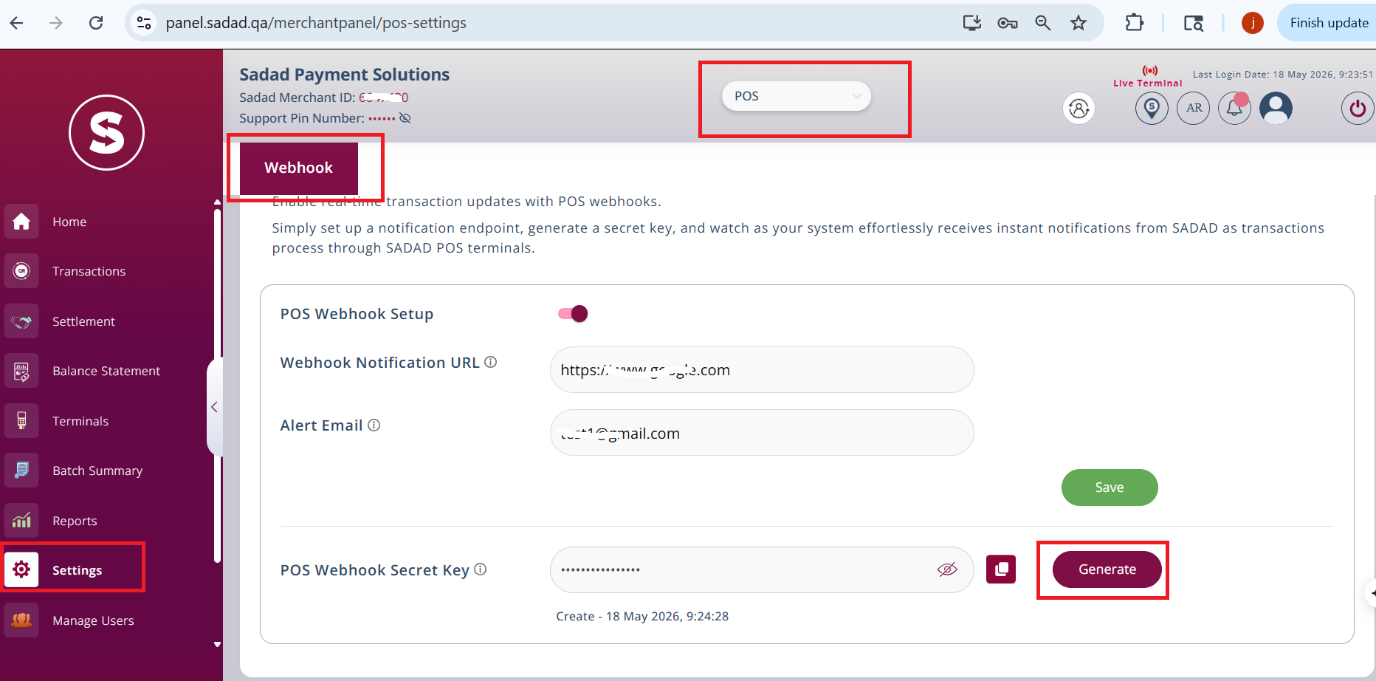
Log in to https://panel.sadad.qa/ and POS will show as default. Go to settings from the left menu and you will find Webhook option. Enable POS Webhook setup and add Webhook notification URL where you will receive the notification for all transactions made regardless of the status of the transaction.
You can add the Alert mail for getting an alert when a transaction is created. Click on save after adding the details.
Generate the POS Webhook Secret Key by clicking on Generate option
Example of checksumhash creation:
- The merchant will create a checksumhash using his secret key and the request data that the merchant will submit
- The merchant will create a checksumhash using the following method:
- Sort all the request parameter names alphabetically except product detail which is an array
- Create a string and the first part of the string will be the merchant's secret key
- Append all alphabetically sorted parameters as a query string to the secret key
- Encrypt query string with hashing algorithm sha256.
- Add this encrypted string as a checksumhash parameter
Data to Add to checksumhash:
| Parameter | Value |
|---|---|
| rrn | 60742XX60080 |
| terminalId | SD0XX109 |
| merchantId | 2228XX181 |
| transactionNumber | SP1469XX8897513 |
| transactionStatus | 3 |
| txnAmount | 55.0 |
Secret Key
T1XX45#sGQodf5
Parameters after sorting of keys alphabeticaly:
merchantId:2228XX181
rrn:60742XX60080
terminalId:SD0XX109
transactionNumber:SP1469XX8897513
transactionStatus:3
txnAmount:55.0
Signature String:
T1XX45#sGQodf52228XX18160742XX60080SD0XX109SP1469XX8897513355.0

(There is no separator or terminating character in the signature string.)
Example Final hashed string using SHA256 (SHA-2):
800b260a628caf0eb1cf76afec63acf58bd7e455808a3547525b8014c6a1892d
Example Of Request Payload:
When POS transaction is created, Sadad prepares a payload like this and send to merchant Webhook URL.
{
  "rrn": "6074XXX460080",
  "terminalId": "SD00XX8109",
  "merchantId": "2XX28181",
  "transactionNumber": "SP146XXX8897513",
  "transactionStatus": 3,
  "txnAmount": 55.0,
  "checksumhash": "1b55fc3a3c2cd7cea09dcb446b28fb14646bda5aa14d23e436ec8f6e1d8e3104"
}
The fields are as below:
| Field Name | Type | Description |
|---|---|---|
| rrn | String | The RRN of transaction (available on POS transaction receipt). |
| terminalId | String | Terminal ID from where transaction was initiated. |
| merchantId | String | SADAD ID. |
| transactionNumber | String | SADAD transaction ID. |
| transactionStatus | Integer | Transaction status (3 = Success, 2 = Failed). |
| txnAmount | Double | Amount of transaction. |
| checksumhash | String | SHA256 hash generated as mentioned above in checksumhash generation method. |
To ensure that the webhook data is coming from Sadad, the merchant needs to create the signature (checksumhash) and verify it with the incoming checksumhash value.
How to verify checksumhash:
- Store checksumhash into a temporary variable and then remove it from the json.
- Sort the incoming json in alphabetical order by keys. The json pasted above is sorted already.
- Create a string starting with the merchant secret key and then append the values of sorted json.
- Hash the string created in step 3 with sha256 algorithm.
- Match the string from step 4 and step 1 variable. If it matches, the response has come from Sadad.
Response
When you receive the webhook call, you need to return the HTTP status code 200 and the following response body for SADAD to consider the webhook event successfully delivered.
{
  "status": "success"
}